![[PukiWiki]](image/pukiwiki.png "[PukiWiki]")
近年,経営環境は大きく変化しており,いわゆるVUCA な時代を迎えている.企業が持続的な発展を図るためには,自社の核となる独自の強みを生かし,他者との差別化を図ることが極めて重要である.そんな中,IP ランドスケープが注目を集めている.本研究では,今日に至るまでの莫大な特許文章群を対象とした知見発見および探索を目的とする.
| 扱うデータ | 用途 | ファイル名 | ファイルの場所 |
| システムの内部処理 | flaskを用いたシステムの記述 | appli_2.py | application/practice |
| ドライバーのファイル | 自分の環境に合わせたChromeDriverの保存 | chromedriver.exe | application/practice |
| staticファイル | javascriptや画像のファイルが入っている | static | application/practice |
| ↑の中身 | 3Dグラフを作成するときのjavascriptのファイル | main2.js | static |
| ↑の中身 | javascriptで読み込む用のjsonファイル | output.json | static |
| ↑の中身 | グラフのボタンを作成する用の画像 | xy2.png/xyz2.png | static |
| テキストデータ | 集めてきたテキストデータの一時保存 | text_data.pickle | application/practice |
| ベクトル(数値) | 2次元に圧縮したベクトル | vectors.pickle | application/practice |
| ベクトル(数値) | 15次元に圧縮したベクトル | vectors_15.pickle | application/pracitce |
| シルエット係数 | それぞれのクラス数におけるシルエット係数の値 | shilhouette.pickle | application/practice |
| クラスタリング結果 | クラスタリングの結果のデータ | df_umap.pkl | application/practice |
| simpson係数 | simpson係数の値と単語の出現回数など | jaccard_coef.pkl | application/practice |
| ユーザー辞書 | 各クラスターのユーザー辞書の保存 | user_dic_{classXX}.csv[XX=クラスターの番号(例.class03)] | application/practice |
| 共起語ネットワーク | 2dの共起語ネットワークのhtmlファイル | kyoki_100.html | application/practice |
1.practiceの中のappli_2.pyを動かす.
2.必要なモジュールをすべて入れる.(pip installなど)
⚠umapとMeCabは少し名前が違うモジュールなので注意,そのほかはそのままの名前でインストールすればいいはず.
pip install umap-learn

pip install mecab-python3
2'.termextractはpipではインストールできないため別の入れ方をする.また,モジュールの中身を変更する必要もあり.
3.すべてのインストールが完了したらlocalhost:5000にアクセス.
⚠必ずlocalhost:5000にアクセス!
まず、ChromeDriverをインストールする.自身のGoogleChromeのバージョンを確認し,それに合ったバージョンをインストールする(https://chromedriver.chromium.org/downloads).
わからなかったらここを見て👇
👉https://zenn.dev/ryo427/articles/7ff77a86a2d86a
seleniumをインストールする.バージョン3でもよいが,プログラムの書き方が異なる.
<pythonのとき>
pip install selenium
<notebookのとき>
!python -m pip install selenium
from selenium import webdriver
from selenium.webdriver.common.by import By
from selenium.webdriver.chrome.service import Service
options = webdriver.ChromeOptions()
options.add_argument('--headless')
options.add_argument('--no-sandbox')
options.add_argument('--disable-dev-shm-usage')
インストールしたchromedriver.exeの場所を指定する.
driver_path = "chromedriver-win64/chromedriver.exe"
driver1 = webdriver.Chrome(service=ChromeService(driver_path), options=options)
driver1.implicitly_wait(10)
⚠seleniumのバージョンによってコードの書き方が異なる場合がある(今回はver=4.12.0 )
urlでユーザーからのキーワードと取得する年数を指定する.
url_1 = (
    "https://patents.google.com/?q=("
    + str(keyword)
    + ")&before=priority:"
    + str(2000)
    + "1231&after=priority:"
    + str(2000)
    + "0101&sort=old"
)
def W1(url):
       driver1.get(url)
       try:
           results1 = driver1.find_element(
               By.XPATH, '//*[@id="count"]/div[1]/span[1]/span[3]'
           ).text.replace(",", "")
           if int(results1) <= 10:
               p_n_1 = 1
           else:
               p_n_1 = int(results1) // 10
       except Exception as e:
           print("error")
       for p1 in range(p_n_1 + 1):
           driver1.get(url + "&page=" + str(p1))
           link1 = driver1.find_elements(
               By.XPATH,
               '//*[@id="resultsContainer"]/section/search-result-item/article/state-modifier',
           )
           for i1 in range(len(link1)):
               try:
                   link_url1 = "https://patents.google.com/" + link1[i1].get_attribute(
                       "data-result"
                   )
                   patt1 = pat_text(link_url1)
                   patt1.get_soup()
                   # patt.get_title()
                   patt1.get_claims()

                   d_save1 = []
                   d_save1.append(patt1.get_description())
                   d_save1.append(link1[i1].get_attribute("data-result"))
                   desc1.append(d_save1)
               except Exception as e:
                   print(e)
1.urlから中身を取得する.
2.find_elementで検索結果の数を取得する.
3.p_n_1にページ数を渡す.
4.各ページの中から特許番号を取得する.
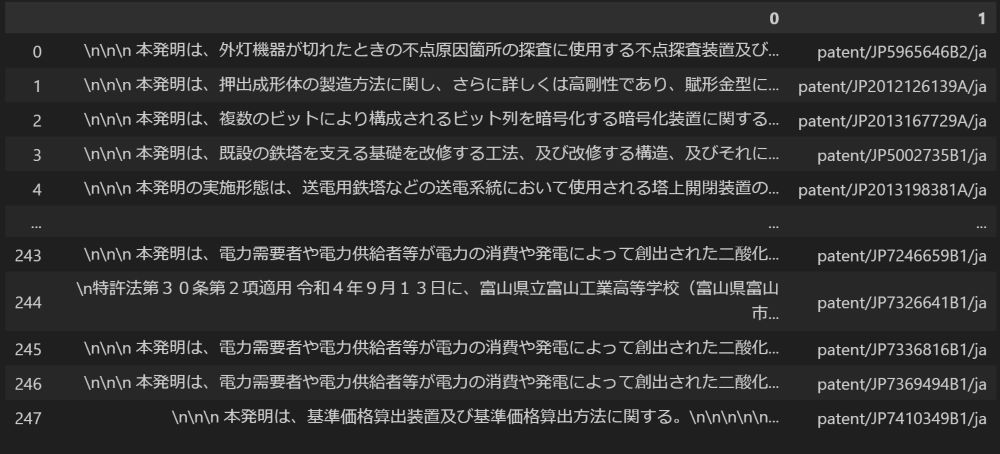
5.find_elementで特許番号(例:patent/JP5965646B2/ja)の部分を取得する
6.取得した番号をもとにhtmlのurlを作成し,関数(pat_text)に渡す.
7.pat_textからの本文と特許番号をd_save1に渡す.
👇実際の取得結果
threadsを用いて並列化を行う.
import threading
   thr1 = threading.Thread(target=W1, args=(url_1,))
   thr2 = threading.Thread(target=W2, args=(url_2,))
   thr3 = threading.Thread(target=W3, args=(url_3,))
   thr4 = threading.Thread(target=W4, args=(url_4,))
   thr5 = threading.Thread(target=W5, args=(url_5,))
   thr6 = threading.Thread(target=W6, args=(url_6,))
   ~~~~~省略~~~~~
           thr24まで
   ~~~~~~~~~~~~
threadを一年ごとに設定する.
それを6年ずつ実行する
要素が混在しないように一年ごととそれぞれのスレッドごとにdescを用意する.
   desc01 = []
   desc02 = []
   desc03 = []
   desc04 = []
   if int(year) == 24:
       #6年分
       desc1 = []
       desc2 = []
       desc3 = []
       desc4 = []
       desc5 = []
       desc6 = []

       #各スレッドのスタート
       thr1.start()
       thr2.start()
       thr3.start()
       thr4.start()
       thr5.start()
       thr6.start()

       #各スレッドの処理が終了するまで待機
       thr1.join()
       thr2.join()
       thr3.join()
       thr4.join()
       thr5.join()
       thr6.join()

       desc01 = desc1 + desc2 + desc3 + desc4 + desc5 + desc6

   if int(year) == 18 or int(year) == 24:
       ~~~~~省略~~~~~
           thr7からthr12まで
       ~~~~~~~~~~~~
       desc02 = desc1 + desc2 + desc3 + desc4 + desc5 + desc6

   if int(year) == 12 or int(year) == 18 or int(year) == 24:
       ~~~~~省略~~~~~
           thr13からthr18まで
       ~~~~~~~~~~~~
       desc03 = desc1 + desc2 + desc3 + desc4 + desc5 + desc6

   ~~~~~省略~~~~~
      thr19からthr24まで
   ~~~~~~~~~~~~
   desc04 = desc1 + desc2 + desc3 + desc4 + desc5 + desc6
最後に各スレッドのdescを合わせる
desc = desc01 + desc02 + desc03 + desc04
ほかのルーティングでテキストデータを参照したい場合がある.
csvに保存してもよいが,文字化けなどの可能性もあるため今回は
pickleモジュールを用いてpickle形式のファイルで保存する.
with open('text_data.pickle', mode='wb') as fo:
    pickle.dump(desc,fo)
with open('text_data.pickle', mode='br') as fi:
    desc = pickle.load(fi)
最後に,取得できたデータの要素数によって例外処理を追加する.
要素数が0の場合に正しく動作しないことや,要素数が少なすぎることを考慮して,要素数が30未満の場合は,トップページ戻るようにしている.
desc_len = len(desc)
if desc_len < 30:
    return redirect(url_for('start'))
事前学習モデルは”sonoisa/sentence-bert-base-ja-mean-token”を用いる
SentenceBertJapaneseの中身はここを参照👇
👉https://huggingface.co/sonoisa/sentence-bert-base-ja-mean-tokens
UMAPでSentence-BERTから得られたベクトルを2次元と15次元に圧縮する.
実際の値
sentence_vectors_umap_15 = umap.UMAP(n_components=15,
                                     random_state=42,
                                     n_neighbors = 25,
                                     min_dist = 0.1,
                                     metric = 'cosine').fit_transform(sentence_vectors)
上記は15次元の場合,2次元にするときはn_componentsの値を2にする.
ベクトル化されたデータもpickleを用いて保存しておく.
with open('vectors_15.pickle', mode='wb') as fo:
    pickle.dump(sentence_vectors_umap_15, fo)
with open('vectors.pickle', mode='wb') as fo:
    pickle.dump(sentence_vectors_umap_2, fo)
K-medoidsでクラスタリングを行うために最適なクラスター数を導出する.
シルエット分析はクラスタリング結果における凝縮度と乖離度をもとに最適なクラスター数を導出する.
クラスター数が3から19までのシルエット係数を計算し係数が一番高くなったクラスター数を最適な数とする.
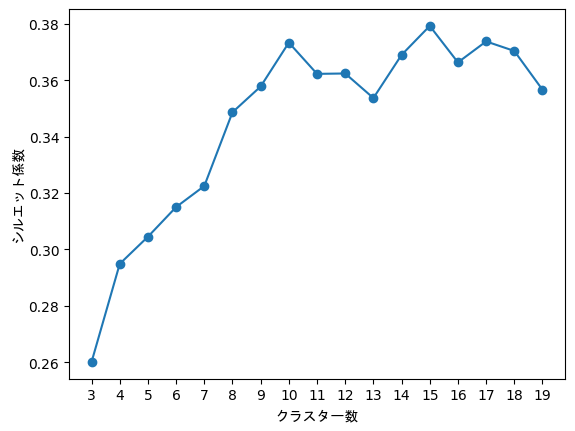
この時場合は一番シルエット係数が高い15を最適なクラスター数とする.
クラスタリングにはk-medoidsを用いる.
k-meansではデータの外れ値が大きい場合,クラスタリングの結果が大雑把になってしまうことが稀にあるため,外れ値につよいk-medoidsを用いる.
df_umap_2 = pd.DataFrame(data=sentence_vectors_umap_2, columns=['x', 'y'])
df_umap_2["class"] = ["cluster"+str(x) for x in cluster]
df_umap_15 = pd.DataFrame(data=sentence_vectors_umap_15, columns=['a1', 'a2', 'a3', 'a4', 'a5', 'a6', 'a7', 'a8', 'a9', 'a10', 'a11', 'a12', 'a13', 'a14', 'a15'])
df_umap_15["class"] = ["cluster"+str(x) for x in cluster]
df_umap_2.to_pickle('df_umap.pkl')
各データの重心とのユークリッド距離を計算する.
centers = kmeans_model.cluster_centers_
df_umap_15["distance"] = np.nan

for j in range(class_n):
    class_name = str("cluster" + str(j))
    d = df_umap_15[df_umap_15["class"] == class_name]

    for i in range(d.shape[0]):
        v = d.iloc[i, :]
        v = v[:-2]

        distances = np.subtract(v, centers[j])

        distances_squared = np.square(distances)

        distance1 = np.sqrt(np.sum(distances_squared))

        df_umap_15.at[d.index[i], "distance"] = distance1
df_umap_15["distance"] = np.nan
v = v[:-2]
df_umap_15.at[d.index[i], "distance"] = distance1
for a in tqdm.tqdm(range(class_n)):
    vec_dis = df_umap_15[df_umap_15["class"] == "cluster" + str(a)]
    vec_dis_sorted = vec_dis.sort_values('distance')
    title_all = []
    # #ランダム
    # if text.shape[0] >= 10:
    #     random_n = 10
    # else:
    #     random_n = text.shape[0]

    # for i in tqdm.tqdm(random.sample(range(text.shape[0]), k=random_n)):
    for i in tqdm.tqdm(range(vec_dis_sorted.head(10).shape[0])):
        # target_text = text.iloc[i][0]
        target_text = pd.DataFrame(df[0]).loc[vec_dis_sorted.head(10).index[i]][0]

        tagged_text = get_mecab_tagged(target_text)

        terms = term_ext(tagged_text)

        compound = remove_single_words(terms)
        title_all.extend([termextract.core.modify_agglutinative_lang(cmp_noun) for cmp_noun, value in compound.most_common(3)])

    set1 = sorted([k for k, v in collections.Counter(title_all).items() if v >= 1], key=title_all.index)
    title.append("/".join(set1[0:3]))
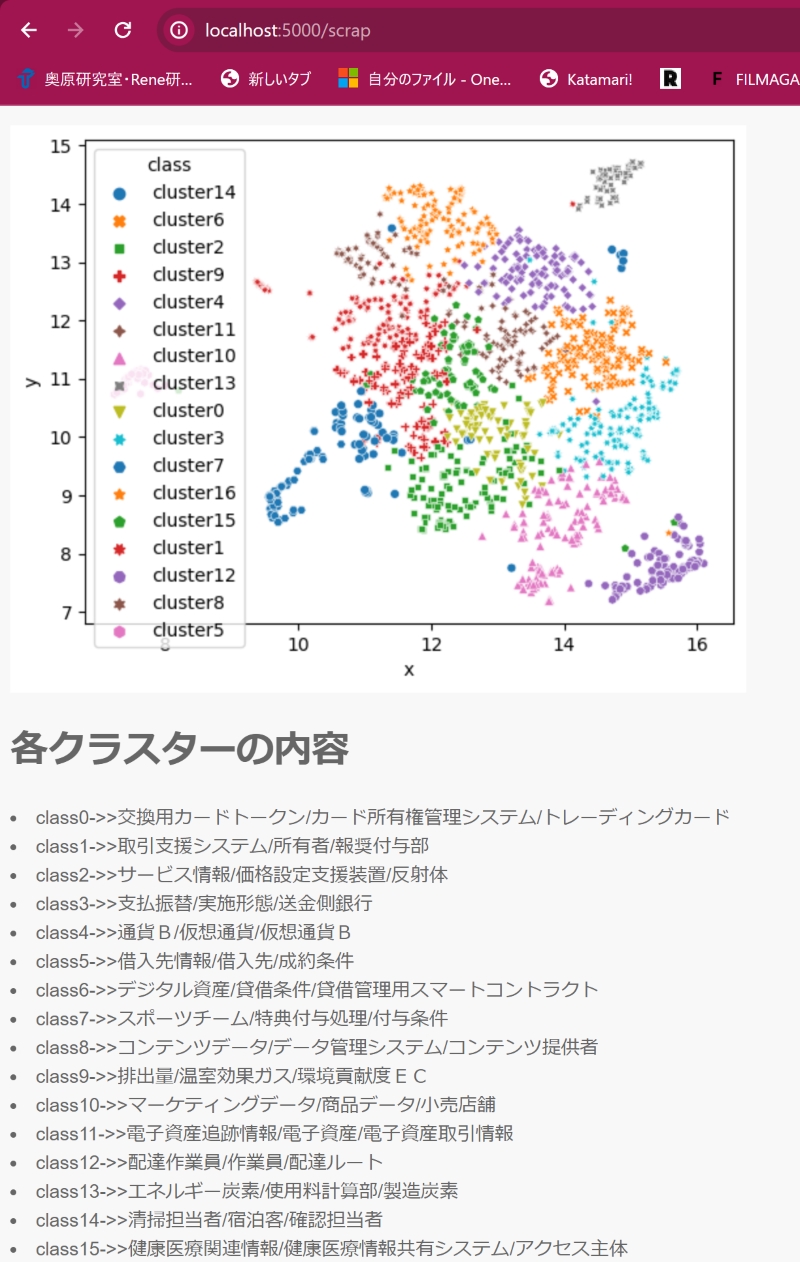
散布図の描画は2次元で行う.
また,散布図の下には各クラスターの内容を表示する.
散布図にはデータのプロットと,データのクラスリングの結果を表示する.
クラスタリング結果の見方は,データの色と点の形からクラスタ番号を参照する.
その番号とクラスターの内容を照らし合わせる.
実際の結果
選択したクラスターに含まれている特許の実際のGoogle Patentsのサイトに飛べるようにしている.
スクレイピングの時に取得した特許番号の部分を使ってurlを作成している.
<h1>特許一覧</h1>
{% for x in plat_index %}{%set plat_index_loop = loop %}
{% for y in plat_index2 %}{%if loop.index==plat_index_loop.index %}
<ul>
    <a href=https://patents.google.com/{{x}} target="_blank">{{y}}</a>
</ul>
{% endif %}
{% endfor %}
{% endfor %}グラフの大きさを描画する共起関係の数をもとに設定する.
<form action="/graph" method="POST">
    <div class="flexbox">
        <div class="flex-item">
            <button type="submit" style="height: 250px;">
                <img src="static/xyz2.png" alt="Button Image" style="height: 100%;">
            </button>
        </div>
        <div style="font-size:large" class="flex-item">3Dグラフ</div>

        <div class="yoko">
            <label>
                <input type="radio" name="3g_size" class="check" value="1000" >小
            </label>
            <label>
                <input type="radio" name="3g_size" class="check" value="2000" checked>中
            </label>
            <label>
                <input type="radio" name="3g_size" class="check" value="3000">大
            </label>
        </div>
    </div>
</form>専門用語や複合語などを抽出するためのモジュール
以下のサイトからtermextractをダウンロードする.
👉http://gensen.dl.itc.u-tokyo.ac.jp/pytermextract/
ダウンロードしたら,ダウンロード先のファイル(termextract)のディレクトリで,コマンドプロンプトを起動する.
コマンドプロンプトで,以下の操作を行う.
pip install .
既存のcore.pyを用いるとエラーが起こる場合があるため変更する.
まず自身のパソコンのtermextractがインストールされているファイルに移動
import termextract

print(termextract.__path__)
このファイルの中のcore.pyを変更する.(今回はcore2.pyとして別のファイルを作成している)
core2.pyにした時のモジュールの定義
import termextract.core2
変更箇所
from decimal import Decimal
~~~~~~~~~~~~~~~~~~~
84| importance = Decimal(importance) ** (1 / (2 * Decimal(average_rate) * count))
~~~~~~~~~~~~~~~~~~~
エラーが起こる理由はおそらく重要度を計算するときに,計算する式の値の桁数が大きすぎるため
termextractの出力結果をもとにJanomeの辞書の登録を行う.
csv形式で与えることでユーザー辞書を登録することができる.
termextactはjanomeを用いる元のmecabを用いるものがあるが,今回はmecabバージョンを使う.
CHASEN_ARGS = r' -F "%m\t%f[7]\t%f[6]\t%F-[0,1,2,3]\t%f[4]\t%f[5]\n"'
CHASEN_ARGS += r' -U "%m\t%m\t%m\t%F-[0,1,2,3]\t\t\n"'
m = MeCab.Tagger(ipadic.MECAB_ARGS + CHASEN_ARGS)
m.parse('')

def get_mecab_tagged(text):
    node = m.parseToNode(text)
    buf = ''
    while node:
        if node.surface:
            buf += node.surface + '\t' + node.feature + '\n'
        node = node.next
    return buf

def term_ext(tagged_text):
    frequency = termextract.mecab.cmp_noun_dict(tagged_text)
    lr = termextract.core2.score_lr(
        frequency,
        ignore_words=termextract.mecab.IGNORE_WORDS,
        lr_mode=1, average_rate=1)
    term_imp = termextract.core.term_importance(frequency, lr)
    return Counter(term_imp)

def remove_single_words(terms):
    c = Counter()
    for cmp, value in terms.items():
        if len(cmp.split(' ')) != 1:
            c[termextract.core.modify_agglutinative_lang(cmp)] = value
return cfor i in tqdm.tqdm(range(text.shape[0])):
target_text = text.iloc[i][0]
tagged_text = get_mecab_tagged(target_text)
terms = term_ext(tagged_text)
compound = remove_single_words(terms)
for cmp_noun, value in compound.most_common(10):
# print(termextract.core.modify_agglutinative_lang(cmp_noun), value, sep="\t")
df_frequency.append(termextract.core.modify_agglutinative_lang(cmp_noun))
app_list = [-1, -1, 1000, '名詞', '固有名詞', '*', '*', '*', '*']
app_list2 =['*', '*']
for i in range(len(df_frequency)):
df_append=[]
df_append.append(df_frequency[i])
df_append.extend(app_list)
df_append.append(df_frequency[i])
df_append.extend(app_list2)
df_csv_frequency.append(df_append)
df_dictio=pd.DataFrame(df_csv_frequency)
df_dictio.to_csv("user_dic_" + str(class_set) +".csv", sep=",",index=False,header=False,encoding='cp932', errors='ignore') 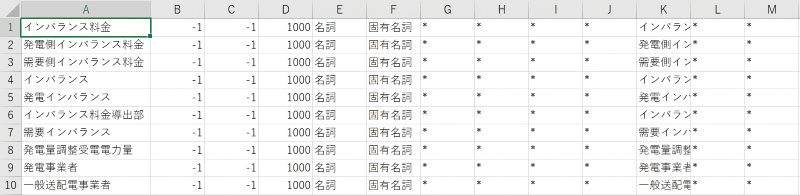
sentences = []
sentences_2 = []

for i in tqdm.tqdm(range(text.shape[0])):
    target_texts = text.iloc[i]
    t = Tokenizer('user_dic_' + str(class_set) +'.csv', udic_enc='cp932')
    texts = target_texts.str.split('。')
    wakati_list = []
    for s in texts[0]:
        words = []
        for token in t.tokenize(s):
            s_token = token.part_of_speech.split(',')
            # 一般名詞、自立動詞(「し」等の1文字の動詞は除く)、自立形容詞を抽出
            if (s_token[0] == '名詞' and s_token[1] == '一般') \
                    or (s_token[0] == '形容詞' and s_token[1] == '自立')\
                    or (s_token[0] == '名詞' and s_token[1] == '固有名詞'):
                words.append(token.surface)
        wakati_list.append(words)
    sentences.append(wakati_list)
    sentences_2.extend(wakati_list)

# combination_sentences = []
# for words in tqdm.tqdm(sentences_2):
combination_sentences = [list(itertools.combinations(words, 2)) for words in sentences_2]
combination_sentences = [[tuple(sorted(combi)) for combi in combinations] for combinations in combination_sentences]
tmp = []
for combinations in combination_sentences:
    tmp.extend(combinations)
combination_sentences = tmp

touroku_list = []

for i in tqdm.tqdm(range(len(combination_sentences))):
    if (combination_sentences[i][0] in df_frequency) or (combination_sentences[i][1] in df_frequency):
        touroku_list.append(combination_sentences[i])
for cmp_noun, value in compound.most_common(10):
    df_frequency.append(termextract.core.modify_agglutinative_lang(cmp_noun))
combination_sentences = [list(itertools.combinations(words, 2)) for words in sentences_2]
combination_sentences = [[tuple(sorted(combi)) for combi in combinations] for combinations in combination_sentences]
tmp = []
for combinations in combination_sentences:
tmp.extend(combinations)
combination_sentences = tmpfor i in tqdm.tqdm(range(len(combination_sentences))):
if (combination_sentences[i][0] in df_frequency) or (combination_sentences[i][1] in df_frequency):
touroku_list.append(combination_sentences[i])Jaccard係数,Dice係数,Simpson係数の計算を行う.(実際に使っているのはSimpson係数)
それぞれの係数の値は{jaccard_coef}に格納されている.(変数名を変更するのが面倒くさかったため)
def make_overlap_coef_data(combination_sentences):

    combi_count = collections.Counter(combination_sentences)

    word_associates = []
    for key, value in combi_count.items():
        word_associates.append([key[0], key[1], value])

    word_associates = pd.DataFrame(word_associates, columns=['word1', 'word2', 'intersection_count'])

    words = []
    for combi in combination_sentences:
        words.extend(combi)

    word_count = collections.Counter(words)
    word_count = [[key, value] for key, value in word_count.items()]
    word_count = pd.DataFrame(word_count, columns=['word', 'count'])

    word_associates = pd.merge(
        word_associates,
        word_count.rename(columns={'word': 'word1'}),
        on='word1', how='left'
    ).rename(columns={'count': 'count1'}).merge(
        word_count.rename(columns={'word': 'word2'}),
        on='word2', how='left'
    ).rename(columns={'count': 'count2'}).assign(
        union_count=lambda x: np.minimum(x.count1,x.count2)
    ).assign(
        count_diff=lambda x: np.abs(x.count1 - x.count2)
    ).assign(jaccard_coef=lambda x: x.intersection_count / x.union_count).sort_values(
        ['jaccard_coef', 'intersection_count'], ascending=[False, False]
    )
~~~~~~~~~~同文~~~~~~~~~~
word_associates = pd.merge(
        word_associates,
        word_count.rename(columns={'word': 'word1'}),
        on='word1', how='left'
    ).rename(columns={'count': 'count1'}).merge(
        word_count.rename(columns={'word': 'word2'}),
        on='word2', how='left'
    ).rename(columns={'count': 'count2'}).assign(
        union_count=lambda x: x.count1 + x.count2 - x.intersection_count
    ).assign(jaccard_coef=lambda x: x.intersection_count / x.union_count).sort_values(
        ['jaccard_coef', 'intersection_count'], ascending=[False, False]
    )
~~~~~~~~~同文~~~~~~~~~~
word_associates = pd.merge(
        word_associates,
        word_count.rename(columns={'word': 'word1'}),
        on='word1', how='left'
    ).rename(columns={'count': 'count1'}).merge(
        word_count.rename(columns={'word': 'word2'}),
        on='word2', how='left'
    ).rename(columns={'count': 'count2'}).assign(
        union_count=lambda x: x.count1 + x.count2
    ).assign(jaccard_coef=lambda x: 2 * x.intersection_count / x.union_count).sort_values(
        ['jaccard_coef', 'intersection_count'], ascending=[False, False]
)実際の出力結果
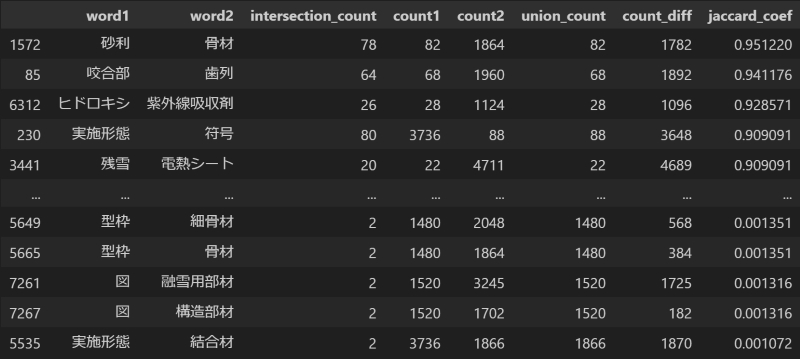
より良い結果を得るためにしきい値を設定する. 具体的には
jaccard_coef_data = make_overlap_coef_data(touroku_list)

simpson = jaccard_coef_data['count_diff']

simpson2 = jaccard_coef_data['jaccard_coef']

filt = (simpson < 5000) & (simpson2 < 1)
jaccard_coef_data[filt].to_pickle('jaccard_coef.pkl')
3D Force-Directed Graphに共起関係の情報を送るためにjsonファイルを作成する.
simpson係数の結果からjsonファイルに変換する
jaccard_coef_data = pd.read_pickle('jaccard_coef.pkl')
got_data = jaccard_coef_data.head(int(g_size))
sources = got_data['word1']#count
targets = got_data['word2']#first

edge_data = zip(sources, targets)

count_list_df = pd.DataFrame([{'first' : i[0], 'second' : i[1]} for i in edge_data])

count_id = count_list_df.stack().drop_duplicates().tolist()

word1 = got_data[['word1','count1']].rename(columns={ 'word1' : 'word' , 'count1' : 'count'})
word2 = got_data[['word2','count2']].rename(columns={ 'word2' : 'word', 'count2' : 'count'})

df_word_count = pd.concat([word1, word2]).drop_duplicates(subset='word')

def create_json(nodes, links):
    json_data = {
        "nodes": nodes,
        "links": links
    }
    return json_data

edge_data = zip(sources, targets)

nodes = []

for _, row in df_word_count.iterrows():
    node = {"id": row['word'], "group": 1}
    if row['count'] > 3000:
        node['group'] = 2
    nodes.append(node)

links = [{"source": values[0], "target": values[1], "value": 1} for values in edge_data]
json_data = create_json(nodes, links)

with open('static/output.json', 'w', encoding='utf-8') as json_file:
    json.dump(json_data, json_file, ensure_ascii=False, indent=4)
作成するjsonファイルの形式(output.json)
{
   "nodes": [
       {
           "id": "砂利",
           "group": 1
       },
       {
           "id": "実施形態",
           "group": 2
       },
~~~~~~~~~~省略~~~~~~~~~~
       {
           "id": "残雪",
           "group": 1
       },
       {
           "id": "上顎",
           "group": 1
       }
   ],
   "links": [
       {
           "source": "砂利",
           "target": "骨材",
           "value": 1
       },
       {
           "source": "咬合部",
           "target": "歯列",
           "value": 1
       },
~~~~~~~~~~省略~~~~~~~~~~
       {
           "source": "ヒドロキシ",
           "target": "紫外線吸収剤",
           "value": 1
       },
       {
           "source": "実施形態",
           "target": "符号",
           "value": 1
       }
   ]
}
3Dグラフの描画にはThree.jsのモジュール”3D Force-Directed Graph”を使う.
参考にしたサイト👉https://vasturiano.github.io/3d-force-graph/
javascriptの買い方はサイトを参考にすれば様々な変更が可能.
⚠モジュールのインポート方法はサイトのものでは行えなかったため独自で行った.
<!DOCTYPE html>
<html lang="en">
  <meta charset="utf-8">
  <style>body{margin: 0px; padding: 0px;}</style>
</head>
<body>
  <button type="button" onclick="history.back()">戻る</button>
  <div id="three" style="background-color: aliceblue;"></div>
  <script type="module" src="https://unpkg.com/three@0.158.0/build/three.js" defer></script>

  <script type="module" src="https://unpkg.com/3d-force-graph@1.73.0/dist/3d-force-graph.min.js" defer></script>

  <script type="module" src="https://unpkg.com/three-spritetext@1.8.1/dist/three-spritetext.min.js" defer></script>

  <script src="./static/main2.js" charset="utf-8" defer></script>
</body>
</html>const highlightLinks = new Set();
const highlightNodes = new Set();
let hoverNode = null;
const Graph = ForceGraph3D()
(document.getElementById("three"))
.jsonUrl('http://localhost:5000/static/output.json')
~~~~~~~~~~省略~~~~~~~~~~htmlの
<div id="three" style="background-color: aliceblue;"></div>
javascritpの
<div id="three" style="background-color: aliceblue;"></div>
の部分のidが同じになっていないといけないので注意.
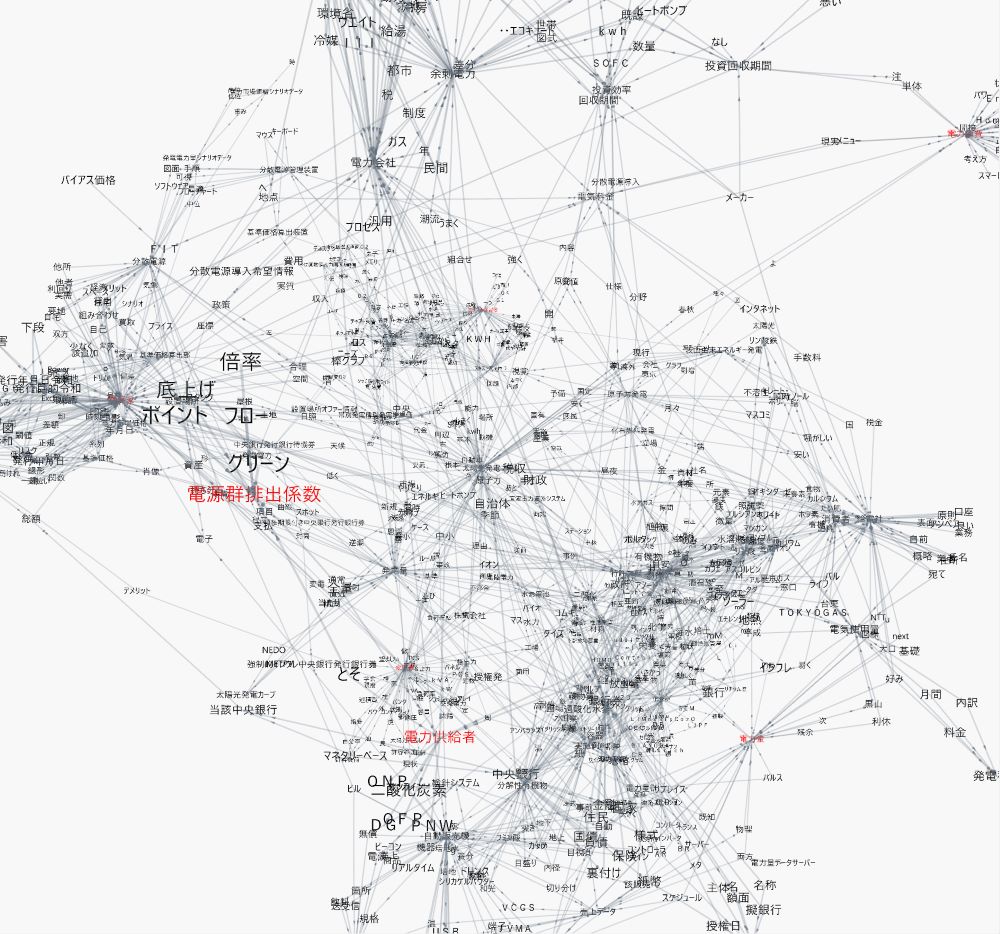
実際の出力結果