![[PukiWiki]](image/pukiwiki.png "[PukiWiki]")
https://www.tug.org/texlive/acquire-netinstall.html
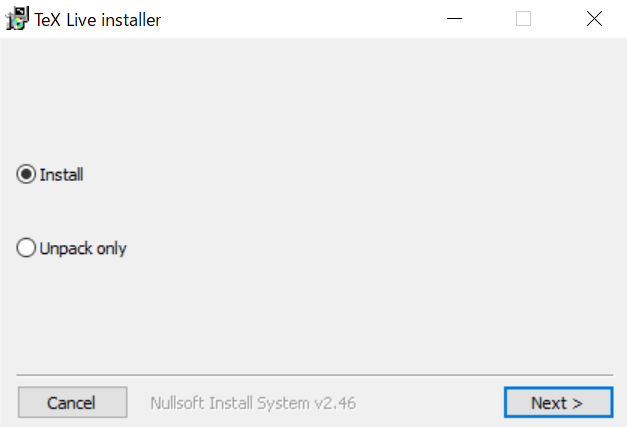
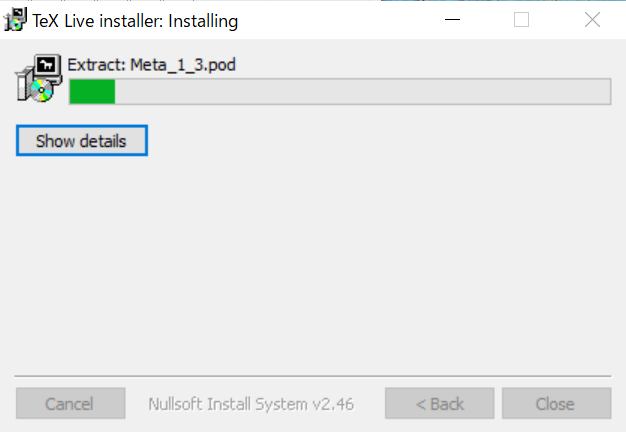
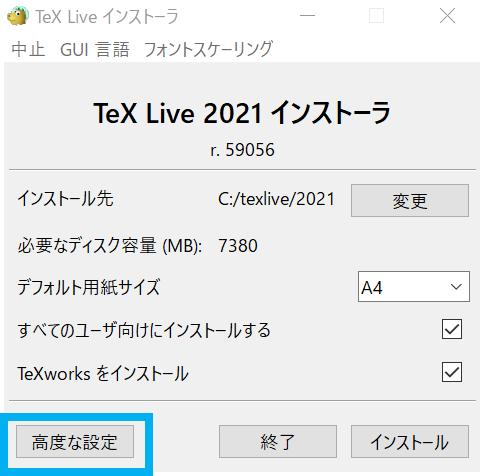
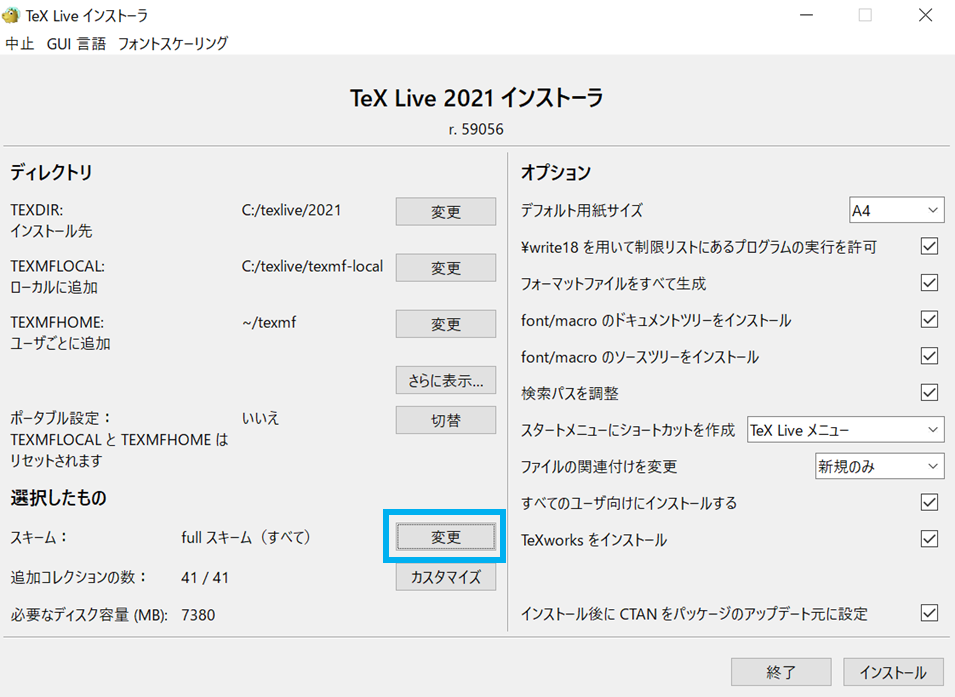
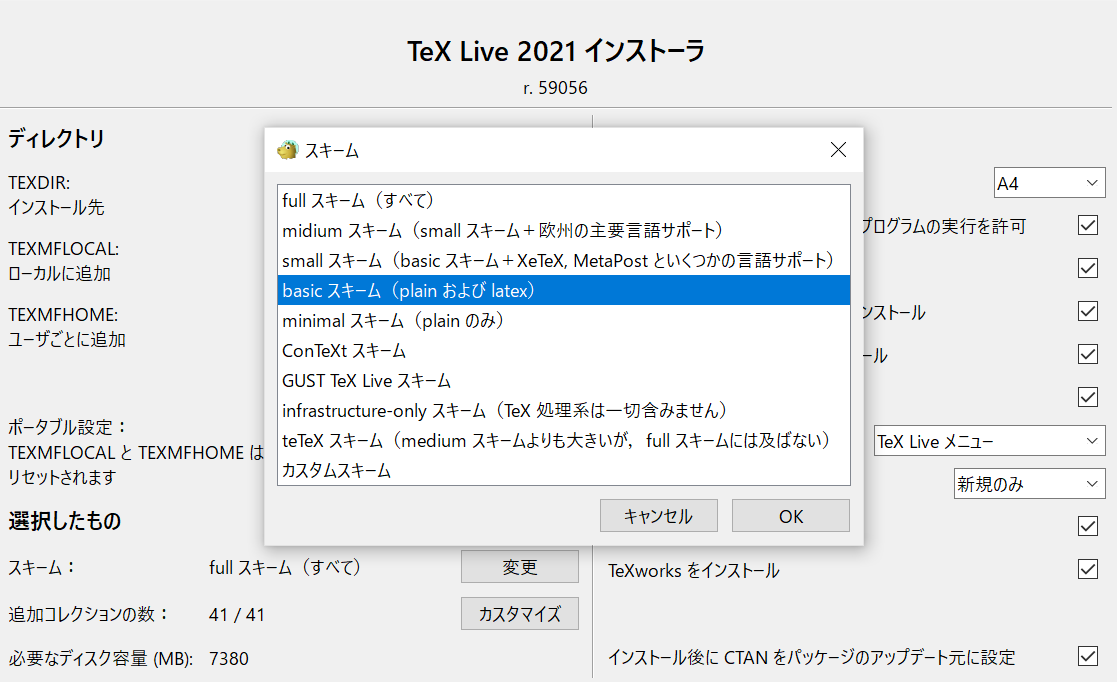
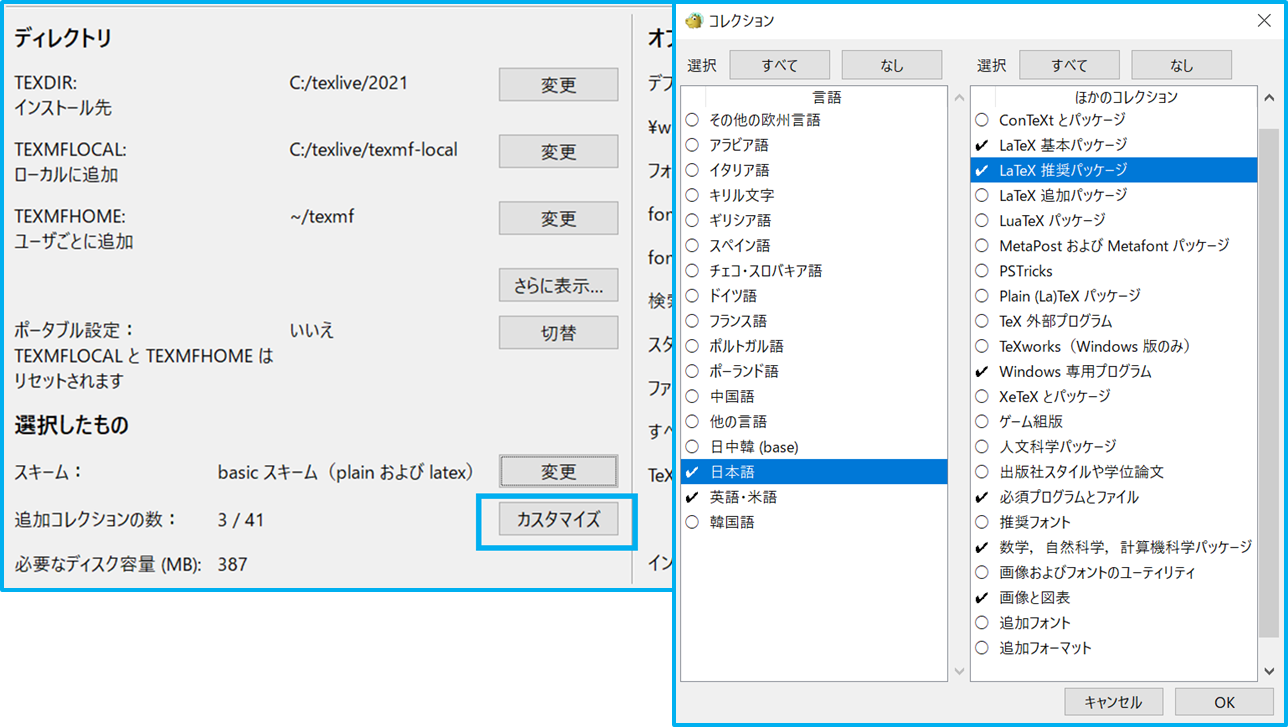
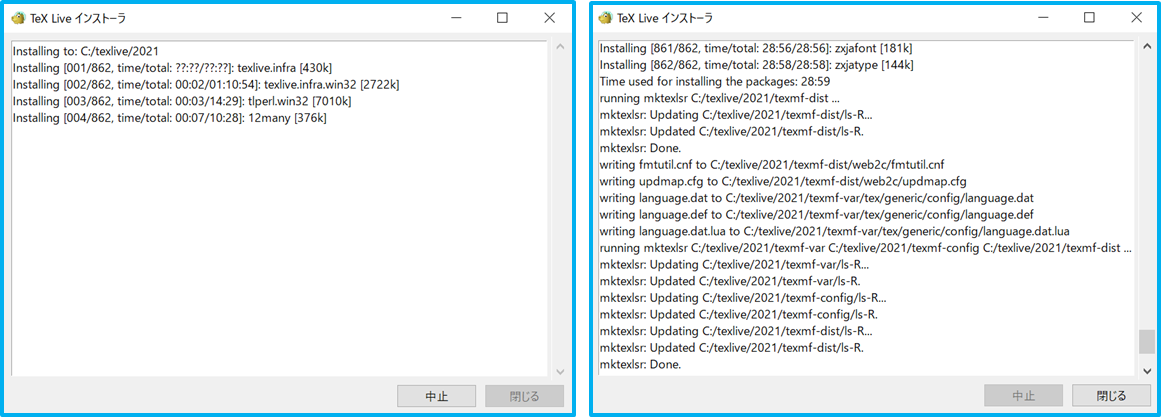
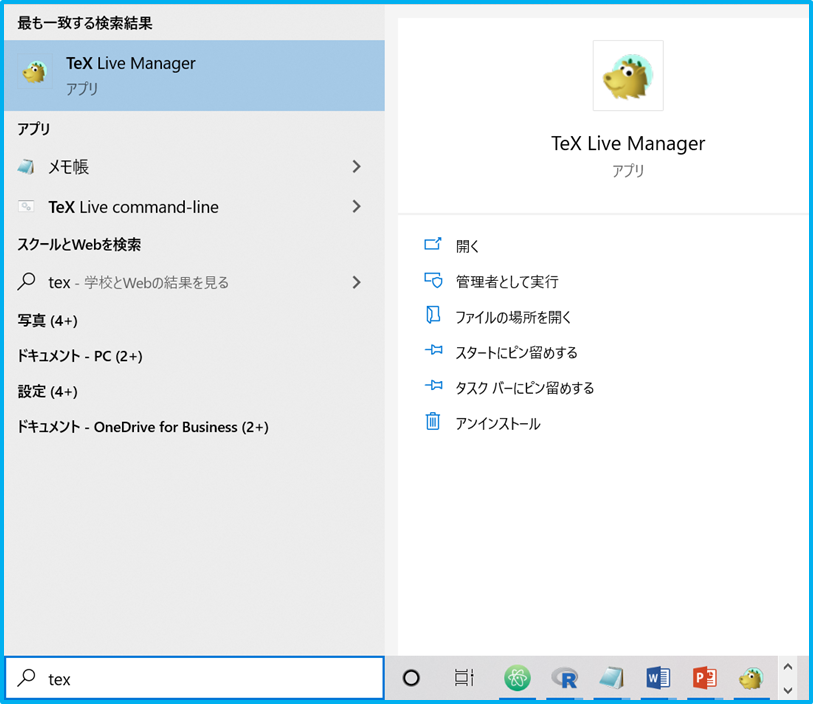
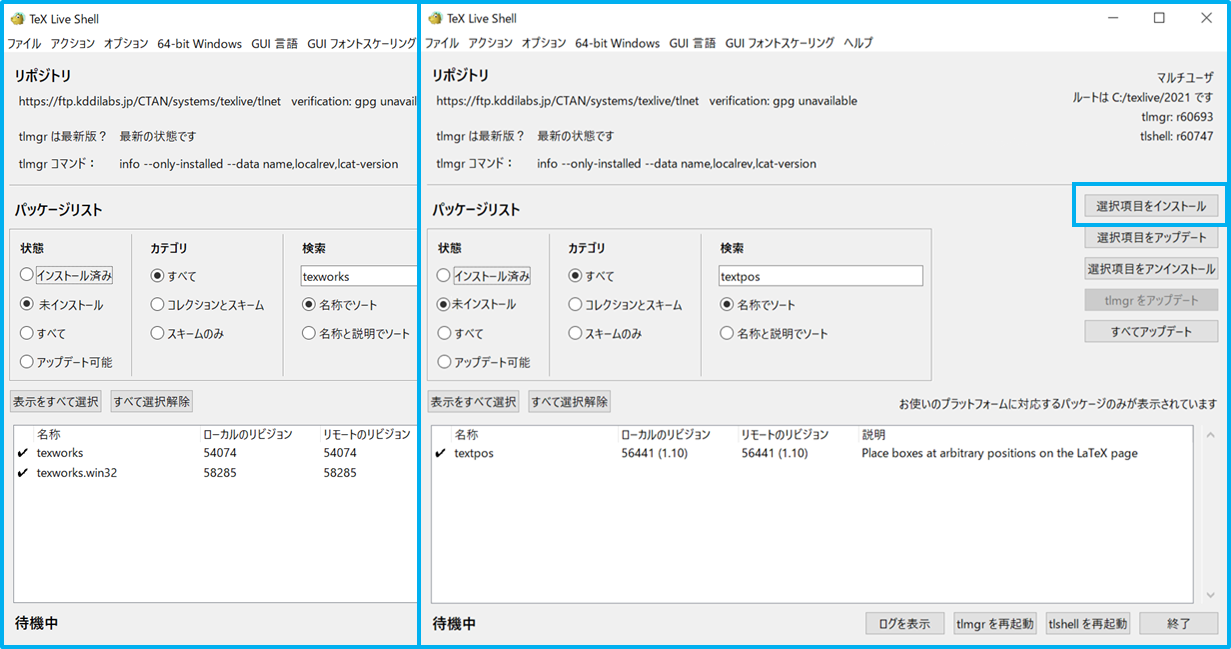
これでBeamerを使えるようになる
{bf x} →太字X
x_1,x_2,\cdots,x_n
\frac{分子}{分母}
\sum_{x=i}^{n}x_i
横方向(変数説明で空けたいときなど)
\hspace{5mm} ←ミリ数はご自由に
縦方向(段落間隔をいじる)
~~~~前文\\
\vspace{1mm}
縦方向(改行)
前文~~~~\\
\vspace{\baselineskip}
\begin{columns}
    \begin{column}{0.48\textwidth}
        \begin{figure}[h]
        \begin{center}
        \includegraphics[clip,width=5cm]{./figure/~.png}
        \caption{name}
        \end{center}
        \end{figure}
    \end{column}
    \begin{column}{0.48\textwidth}
        \begin{figure}[h]
        \begin{center}
        \includegraphics[clip,width=5cm]{./figure/~.png}
        \caption{name}
        \end{center}
        \end{figure}
    \end{column}
 \end{columns}


