![[PukiWiki]](image/pukiwiki.png "[PukiWiki]")
(横井さんの資料を参考に修正部分を追加)
0)あらかじめ変更前IPアドレスのサーバーを停止させる
[root@localhost tmp]# systemctl stop sshd.service
ssh接続の場合、ログアウトしてサーバに接続できないことを確認する
[root@localhost tmp]# exit
ssh root@(前IPアドレス)で↓の表示が出ることを確認する
ssh: connect to host 192.168.0.◇◇◇ port 22: Connection refused
1)CentOSインストール時のような画面でIPアドレスは変更できないので、代わりに↓のコマンドで編集していく
nmtui
ここでは矢印キーとEnterで移動•選択ができる
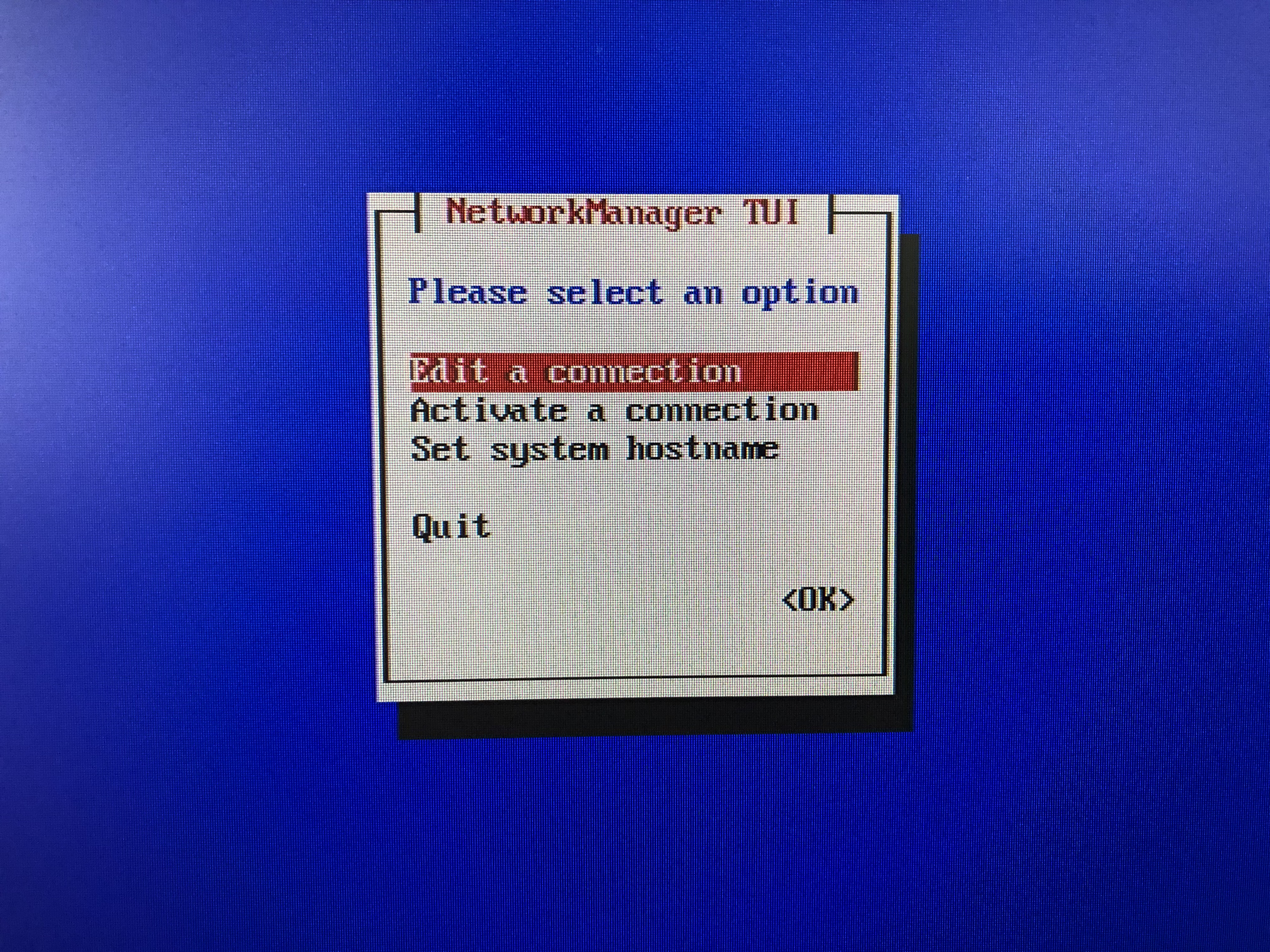
2)Edit a Connection→Editを選択し↓の画面へ移動
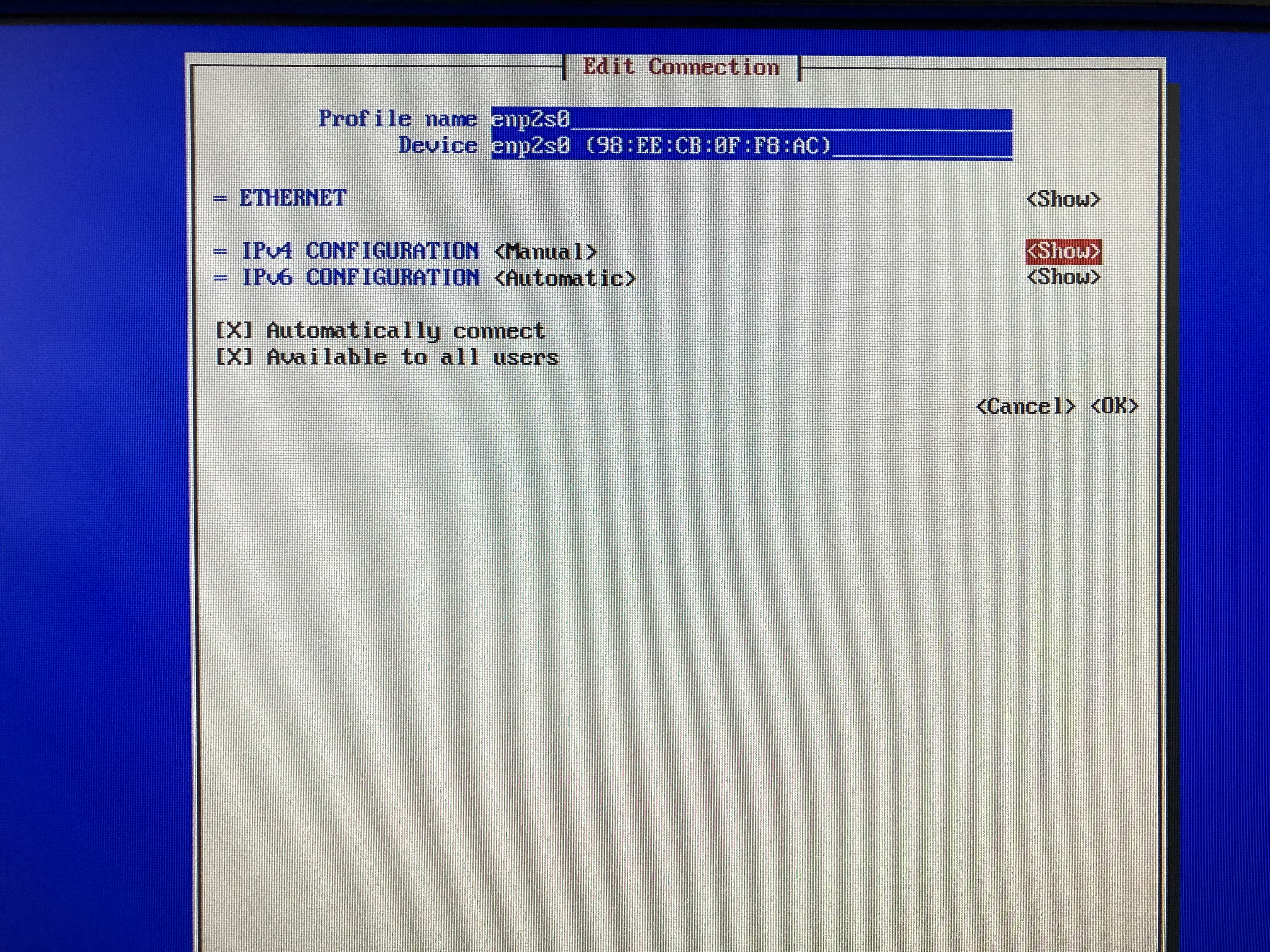
3)「IPv4 CONFIGURATION」の<>内からManualを選択する
4)<Show>を選択
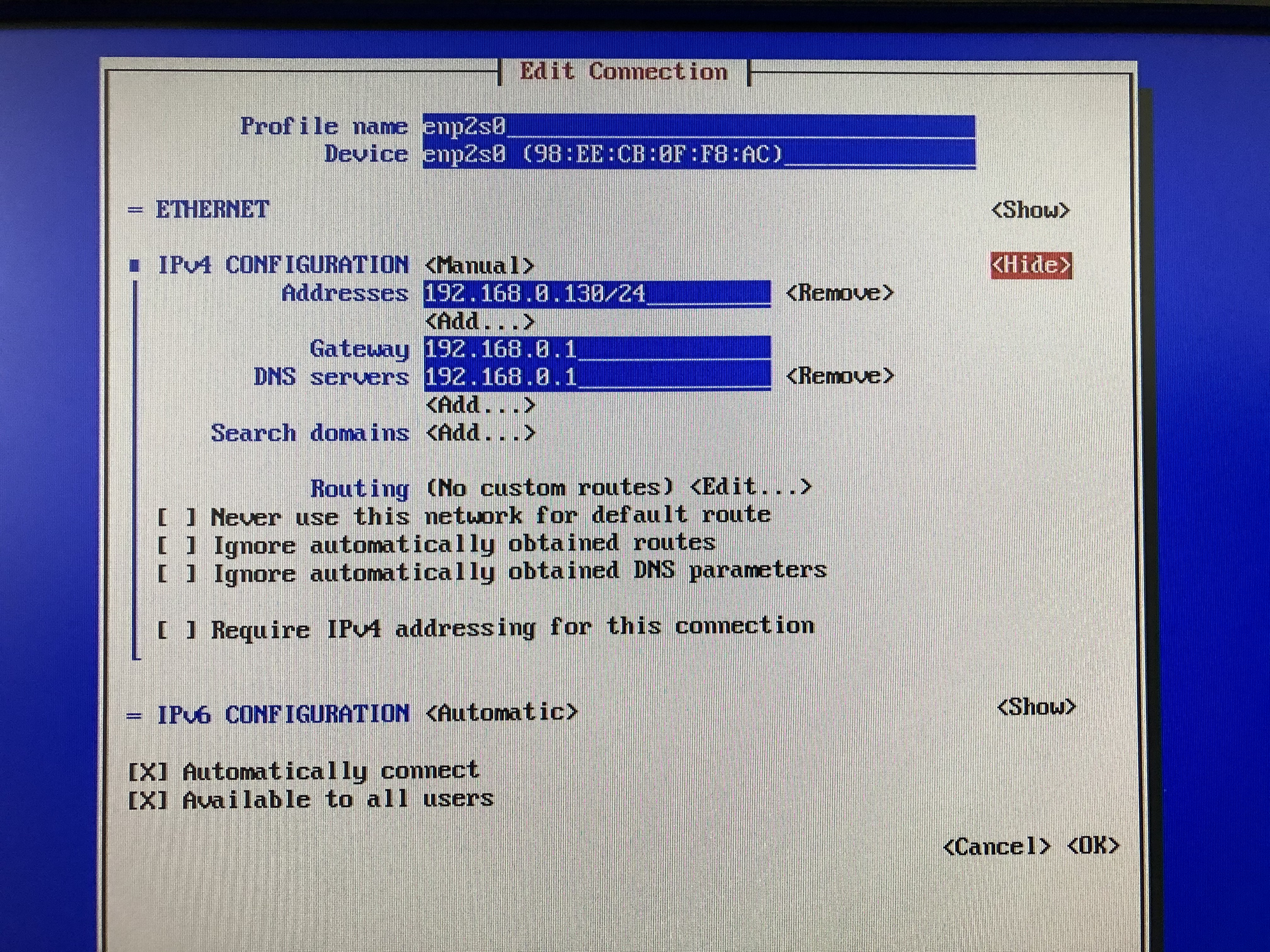
Addresses には192.168.0.◇◇◇/24をGateway には192.168.0.1、DNS serversにも192.168.0.1を入力
(◇◇◇には2〜255の番号&Airmacに繋がる全てのデバイスと被らないものを選ぶ)
(192.168.0.1 がAirMac自体のアドレス?)
5)下へ行き
「Automatically Connect」「Available to all users」にスペースキーでXを入れる
6)<OK>→<Back>を選択し、今度は「Activate a connection」のページに行く
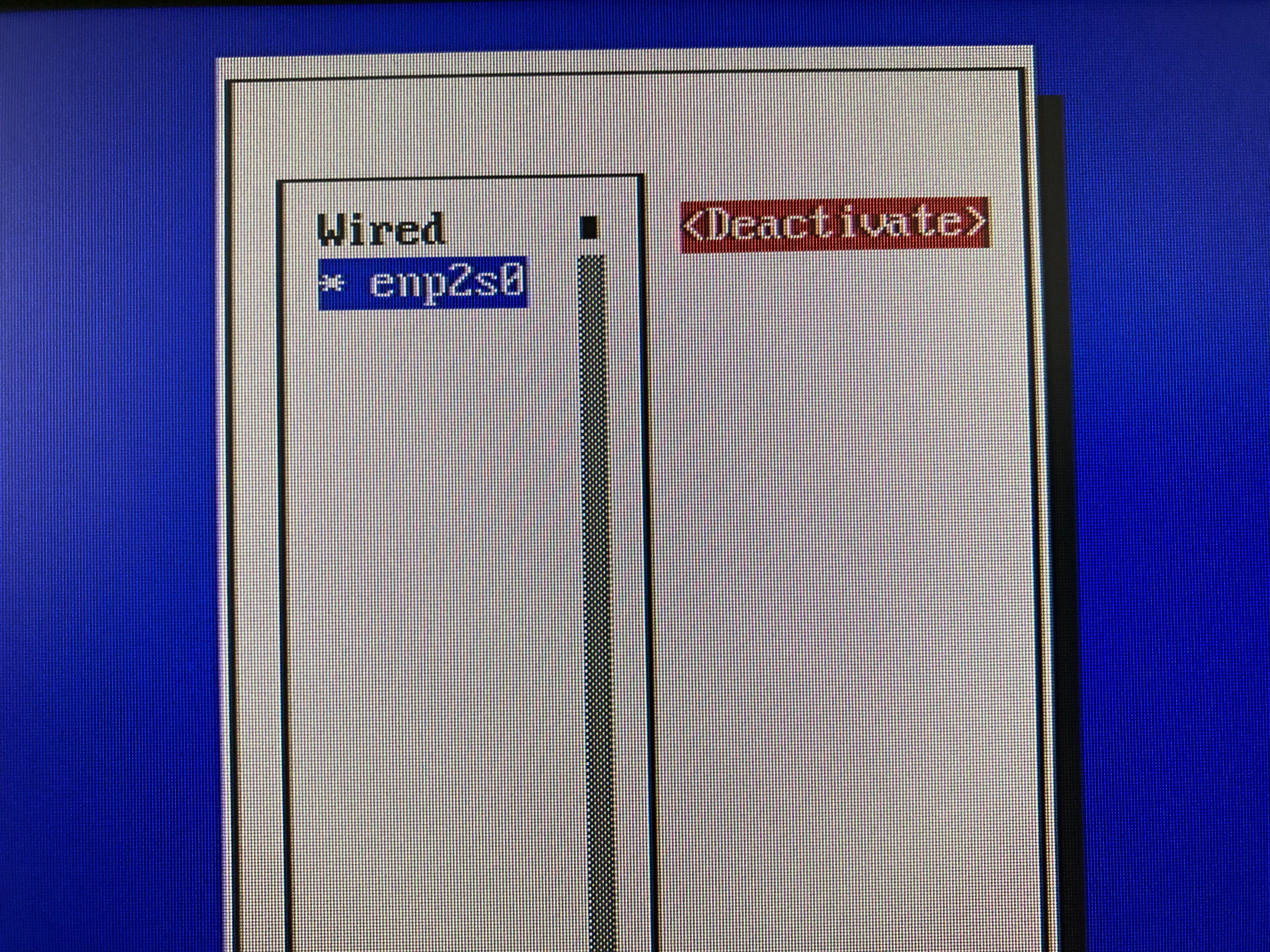
変更内容を反映させるため、一度リセットする
→<Deactivate>を押して、<Active>になったところでもう一度押して有効にする
(表示では<Deactivate>に戻れば、有効になっている)
7)トップの画面で<OK>を押して元のコマンド入力へ戻る
8)新しいIPアドレスで再起動
systemctl start sshd.service
(自動化するときはenableを付ける)
systemctl enable sshd.service
1)ネットワークの設定を確認する
[root@localhost ~]# vi /etc/sysconfig/network-scripts/ifcfg-enp○○○
(→○○○は有線でつないでいる先のポート番号によって変わる) DNS1の部分を↓のように変更する
DNS1=192.168.0.1
2)変更内容を反映
[root@localhost network-scripts]# service network restart
yum ~~~を実行後に↓のようなエラーが出ることがある
[root@localhost idea_graph]# yum -y update
読み込んだプラグイン:fastestmirror, langpacks
Loading mirror speeds from cached hostfile
Could not retrieve mirrorlist http://mirrorlist.centos.org/?
release=7&arch=x86_64&repo=os&infra=stock error was
14: curl#6 - "Could not resolve host: mirrorlist.centos.org; 不明なエラー"


 One of the configured repositories failed (不明),
 and yum doesn't have enough cached data to continue. At this point the only
 safe thing yum can do is fail. There are a few ways to work "fix" this:

     1. Contact the upstream for the repository and get them to fix the
problem.

     2. Reconfigure the baseurl/etc. for the repository, to point to a working
        upstream. This is most often useful if you are using a newer
        distribution release than is supported by the repository (and the
       packages for the previous distribution release still work).

     3. Run the command with the repository temporarily disabled
            yum --disablerepo=<repoid> ...

     4. Disable the repository permanently, so yum won't use it by default. Yum
        will then just ignore the repository until you permanently enable it
        again or use --enablerepo for temporary usage:

            yum-config-manager --disable <repoid>
        or
            subscription-manager repos --disable=<repoid>

     5. Configure the failing repository to be skipped, if it is unavailable.
        Note that yum will try to contact the repo. when it runs most commands,
        so will have to try and fail each time (and thus. yum will be be much
        slower). If it is a very temporary problem though, this is often a nice
        compromise:

            yum-config-manager --save --setopt=
<repoid>.skip_if_unavailable=true

Cannot find a valid baseurl for repo: base/7/x86_64
Case2. [#ge923d1f]
【解決策1】DNSの設定1),2)が行われているか確認する
【解決策2】サーバのIPアドレス変更の6)でもう一度リセットしてみる
【解決策3(解決策1,2を試しても失敗する場合)】↓のファイルの中身を編集する
[root@localhost ~]# vim /etc/yum.repos.d/CentOS-Base.repo
# unless you are manually picking other mirrors.
#
# If the mirrorlist= does not work for you, as a fall back you can try the
# remarked out baseurl= line instead.
#
#

[base]
name=CentOS-$releasever - Base
#mirrorlist=http://mirrorlist.centos.org/?
release=$releasever&arch=$basearch&repo=os&infra=$infra
baseurl=http://mirror.centos.org/centos/$releasever/os/$basearch/
#baseurl=http://ftp.riken.jp/Linux/centos/$releasever/os/$basearch/
gpgcheck=1
gpgkey=file:///etc/pki/rpm-gpg/RPM-GPG-KEY-CentOS-7

#released updates
[updates]
name=CentOS-$releasever - Updates
#mirrorlist=http://mirrorlist.centos.org/?
release=$releasever&arch=$basearch&repo=updates&infra=$infra
baseurl=http://mirror.centos.org/centos/$releasever/updates/$basearch/
gpgcheck=1
gpgkey=file:///etc/pki/rpm-gpg/RPM-GPG-KEY-CentOS-7

#additional packages that may be useful
[extras]
name=CentOS-$releasever - Extras
#mirrorlist=http://mirrorlist.centos.org/?
release=$releasever&arch=$basearch&repo=extras&infra=$infra
baseurl=http://mirror.centos.org/centos/$releasever/extras/$basearch/
gpgcheck=1
gpgkey=file:///etc/pki/rpm-gpg/RPM-GPG-KEY-CentOS-7

#additional packages that extend functionality of existing packages
[centosplus]
name=CentOS-$releasever - Plus
mirrorlist=http://mirrorlist.centos.org/?
release=$releasever&arch=$basearch&repo=centosplus&infra=$infra
#baseurl=http://mirror.centos.org/centos/$releasever/centosplus/$basearch/
gpgcheck=1
enabled=0
gpgkey=file:///etc/pki/rpm-gpg/RPM-GPG-KEY-CentOS-7
一番最後のエラー文が「base/7/x86_64」の場合は[base]、「extras/7/x86_64」の場合は[extras]の項目に対して「mirrorlist=~」の部分をコメントアウト(#)し、baseurlを有効にする
1)コマンドプロンプトで以下を入力
C:\Users\~~~>ssh root@192.168.0.◇◇◇
(初回では先に"yes"を入力)パスワードを入力してログイン
→[root@blockly ~]の表示になる
2)cyber-space_analysis"ディレクトリへ移動
[root@localhost ~]# cd /var/www/html/cyber-space_analysis
→発送支援のPythonファイル編集には主にこのフォルダ内を使う
scpコマンドを使う(ファイルが置いてあるディレクトリへ移動)
>scp [送るファイル名] root@192.168.0.◇◇◇:[送るディレクトリ先] "
(例)"test.txt"を送りたいとき
→"test.txt"のディレクトリまで移動し
scp test.txt root@192.168.0.◇◇◇:/var/www/html/cyber-space_analysis
ディレクトリ(ここではdic)を送るときは"-r"を付ける
scp -r dic root@192.168.0.130:/opt/mecab/lib/mecab
※「No module named 'MeCab'」が出たときはmecab-python3を入れる(Mecabだと赤いエラーが大量発生する)
関連ライブラリのインストール
sudo yum install -y bzip2 bzip2-devel gcc gcc-c++ git make wget curl openssl-devel readline-devel zlib-devel patch file
作業フォルダを作成して移動
mkdir -p ~/source/mecab
cd ~/source/mecab
ソースをダウンロードして解凍して移動
wget 'https://drive.google.com/ucexport=download&id=0B4y35FiV1wh7cENtOXlicTFaRUE' -O mecab-0.996.tar.gz~
tar zxvf mecab-0.996.tar.gz~
cd mecab-0.996
インストール先フォルダを作成
sudo mkdir -p /opt/mecab
configure(コンパイルのための設定)を実行し、コンパイルしてインストール
./configure --prefix=/opt/mecab --with-charset=utf8 --enable-utf8-only
make
sudo make install
インストールしたmecabの実行ファイル(のあるフォルダ)をパスに追加
bashの場合
echo "export PATH=/opt/mecab/bin:\$PATH" >> ~/.bashrc~
source ~/.bashrc~
※※↓この部分はたぶんやらなくてもOK※※
ipadic(標準辞書)のインストール
作業フォルダを作成して移動
mkdir ~/source/mecab-ipadic
cd ~/source/mecab-ipadic
辞書ファイルを取得して解凍して移動
wget 'https://drive.google.com/uc?
export=download&id=0B4y35FiV1wh7MWVlSDBCSXZMTXM' -O mecab-ipadic-2.7.0-20070801.tar.gz~
tar zxvf mecab-ipadic-2.7.0-20070801.tar.gz~
cd mecab-ipadic-2.7.0-20070801~
設定してmakeしてインストール
./configure --with-mecab-config=/opt/mecab/bin/mecab-config --with-charset=utf8
make
sudo make install
~~~
~~~
scpでC:\Program Files\MeCabにあるdicを/opt/mecab/lib/mecabに送り込む
(ドライブにDELL内のipadicとmecab-ipadic-neologdをアップしておく)
1)scpでドライブにあるdicを/opt/mecab/lib/mecabに送り込む
/opt/mecab/lib/mecab内にipadicがあったら、あらかじめ削除しておく
[root@localhost mecab]# rm -rf ipadic~
↓送る側のコマンドプロンプト
C:\Program Files\MeCab>scp -r dic root@192.168.0.130:/opt/mecab/lib/mecab
2)mecabrc内のdicdirを以下のように変更する
[root@localhost ipadic]# vim /opt/mecab/etc/mecabrc~
dicdir =  /opt/mecab/lib/mecab/dic/mecab-ipadic-neologd~
3)idea_graphまで移動
[root@localhost idea_graph]# cd /var/www/html/cyber-space_analysis/idea_graph/
4)Textmining.pyの110行目あたりのtagger = MeCab.Taggerの()内を以下のようにする
tagger = MeCab.Tagger('-r /opt/mecab/etc/mecabrc')
yumリポジトリ作成
[root@localhost idea_graph]# vim /etc/yum.repos.d/google.chrome.repo
新しくできたファイルに以下を記述
[google-chrome]
name=google-chrome
baseurl=http://dl.google.com/linux/chrome/rpm/stable/$basearch
enabled=1
gpgcheck=1
gpgkey=https://dl-ssl.google.com/linux/linux_signing_key.pub
yum updateを実行(↓がどこかに表示されていたらOK?)
google-chrome
google-chrome/x86_64/primary
google-chrome
Chromeインストール
yum -y install google-chrome-stable
CentOSのクラッシュ対策用とChrome用フォントのインストール
[root@localhost /]# yum install -y libOSMesa google-noto-cjk-fonts
pip用のバージョン確認
[root@localhost /]# google-chrome --version
出てきたバージョンを□□□に入れてpip
[root@localhost /]# pip install chromedriver-binary==□□□
※おそらく赤で「このバージョン番号しかない」みたいな表示が出るので□□□に一番近いバージョンに変えてやり直す
seleniumとpyvirtualdisplayとlxmlをインストール
[root@localhost /]# pip install selenium
[root@localhost /]# pip install pyvirtualdisplay
[root@localhost /]# pip install lxml
1)google検索のトップページに行けるか確認
[root@localhost /]# google-chrome --headless --no-sandbox --dump-dom https://www.google.com/
→ 後ろに--headless等を付けることでCUIベースのCentOSでもGPUなしでアクセスできるようにしている
※おそらく文字が大量に流れてくると思われるが、一番後ろに</script></body></html>
があれば、googleトップページのhtml表示版が出てきている感じなのでOK
2)これで準備ができたので、Textmining.pyを起動してスクレイピング
[root@localhost /]# cd /var/www/html/cyber-space_analysis/idea_graph/
[root@localhost idea_graph]# python Textmining.py
↓の実行結果みたいになっていればOK
【検索ワード】
属性データ: 夫婦
任意のキーワード: 指定なし (←指定した場合は指定したワードが入る)
地名データ: 指定しない   (←これらは同ディレクトリ内のkey.txtを編集する)
データフレームの大きさ: 30
発想支援を開始します
Twitterの分析中(1/3)
「夫婦」でスクレイピング中
  0%|                                          | 0/14 [00:00<?, ?it/s] * Serving Flask app "Server" (lazy loading)
 * Environment: production
   WARNING: This is a development server. Do not use it in a production
deployment.
   Use a production WSGI server instead.
 * Debug mode: on
 * Running on http://127.0.0.1:5000/ (Press CTRL+C to quit)
 * Restarting with stat
 * Debugger is active!
 * Debugger PIN: 174-577-420
100%|█████████████████████████████████| 14/14 [00:28<00:00,  2.06s/it]
自然言語処理中
100%|███████████████████████████████████| 3/3 [03:42<00:00, 74.10s/it]
Webの分析中(2/3)
Webのスクレイピング中
100%|███████████████████████████████████| 8/8 [00:08<00:00,  1.02s/it]
自然言語処理中
100%|███████████████████████████████████| 3/3 [00:52<00:00, 17.42s/it]
発想支援3Dグラフの表示(3/3)
◎Blocklyに接続するときはこれを入力(シークレットタブで開く)
http://192.168.0.◇◇◇/cyber-space_analysis/
→このリンクでBlocklyの作成画面へ飛べる
1)cgi形式のTextminingを作り、cgi-binへ移動させる
[root@localhost idea_graph]# cp Textmining.py Textmining.cgi
[root@localhost idea_graph]# mv Textmining.cgi /var/www/cgi-bin
2)実行権限を有効化する(lsで見たときのファイルの色が白からカラーになる)
[root@localhost cgi-bin]# chmod 755 Textmining.cgi
3)httpd.confでIFModuleの部分を↓のようにする
<IfModule alias_module>
ScriptAlias /cgi-bin/ "/var/www/cgi-bin/"
</IfModule>
<Directory "/var/www/cgi-bin">
   AllowOverride None
   Options ExecCGI
   Require all granted
   AddHandler cgi-script .py .cgi
</Directory>
4)toolbox内にスクレイピングの項目を追加
[root@localhost cgi-bin]# vim /var/www/html/cyber-space_analysis/toolbox.xml
5)average.jsに↓の項目を追加
[root@localhost cgi-bin]# vim /var/www/html/cyber-space_analysis/average.js
6)average_block.jsにも同様に追加
[root@localhost cgi-bin]# vim /var/www/html/cyber-space_analysis/average_block.js
7)httpdの更新
[root@localhost cgi-bin]# systemctl restart httpd
◎Blockly上でエラーが出たときはここを参照
vim /var/log/httpd/error_log
他のログはhttpdに入っている
[root@localhost yum.repos.d]# vim /var/log/httpd/
access_log          error_log-20210307  ssl_error_log
error_log           ssl_access_log      ssl_request_log
補足
Cron Deamonから頻繁にメールがくる場合
/etc/cron.hourly/0yum-hourly.cron:

Repository google-chrome is listed more than once in the configuration
このメールが何度も来るときはgoogle chromeのレポジトリが重複しているので、使っていない方を削除する
[root@localhost www]# cd /etc/yum.repos.d
[root@localhost yum.repos.d]# ls
CentOS-Base.repo       CentOS-Media.repo    CentOS-fasttrack.repo
epel.repo           ius-archive.repo
CentOS-CR.repo         CentOS-Sources.repo  CentOS-x86_64-kernel.repo  google- chrome.repo  ius-testing.repo
CentOS-Debuginfo.repo  CentOS-Vault.repo    epel-testing.repo        google.chrome.repo  ius.repo   (google.chromeとgoogle-chromeで重複)
[root@localhost yum.repos.d]# vim google.chrome.repo
[root@localhost yum.repos.d]# rm google.chrome.repo


